Training 2: Projects, settings, title block and output
Set this up once and your reports and sheets carry your firm. The rule: your defaults apply to all your projects, and a project can override any field. Nothing is global to the server, so a colleague's settings never change yours.
Projects #
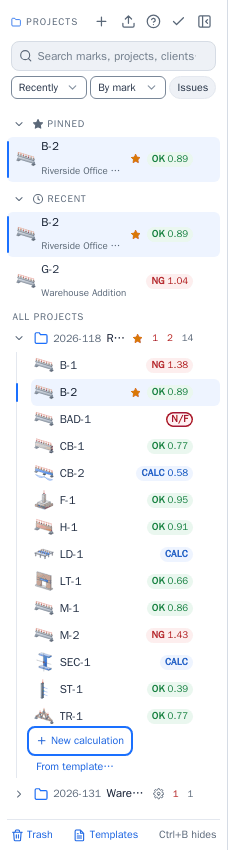
- + creates a project. Project info in the header (or the project's menu) holds the name, number, client, location, architect, contractor, engineer, dates, notes and revisions. These go on the title block and the report.
- Recently, By mark and Issues in the panel order and filter the list. Issues shows only what is not adequate or not feasible.
- The status in the list is the calculation's:
OK 0.89,NG 1.38,N/Ffor not feasible,CALCfor tools with no pass or fail.
Right-click a project for its menu:
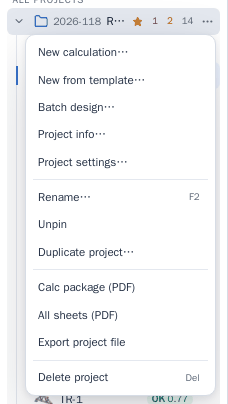
Calc package (PDF) puts the project's calculations in one report; All sheets (PDF) does the same for the drawing sheets. Export project file saves the project as a file, and the import button at the top of the panel reads it back. Deleted items go to Trash at the bottom of the panel.
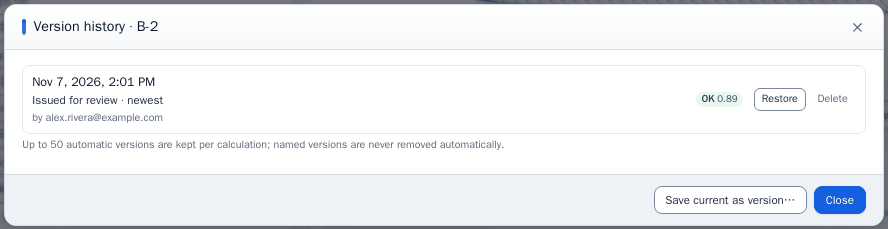
Right-click a calculation for its menu. Version history saves named versions and restores them; Save as template starts new calculations from this one.
Title block: my defaults, then the project #
Open Settings (the gear) with My defaults selected:
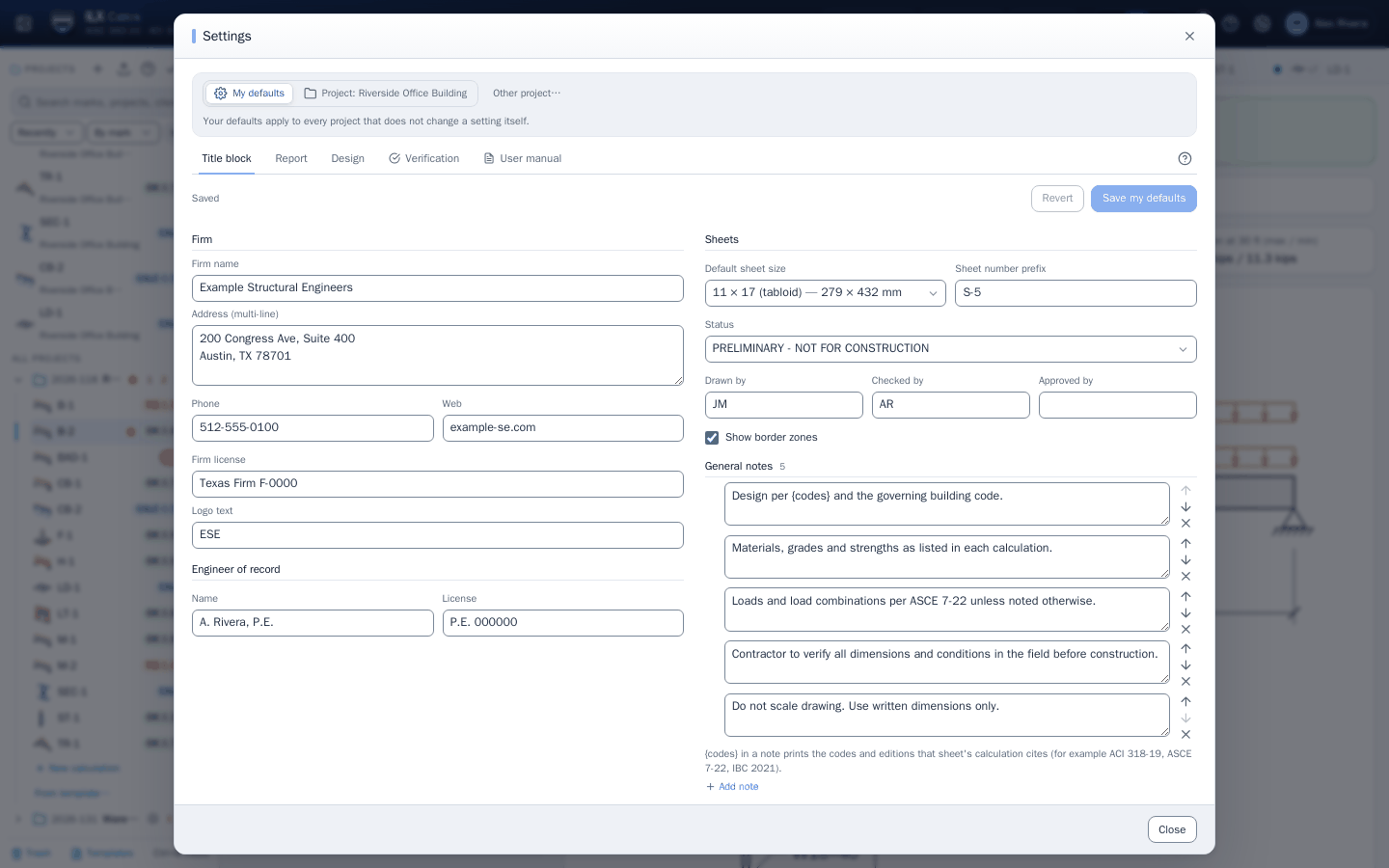
Enter the firm name, address, phone, web, license, logo text, engineer of record, drawn and checked by, the default sheet size, the sheet number prefix, the status line and the general notes. {codes} in a note prints the codes and editions that the sheet's calculation cites. Select Save my defaults.
To change something for one job, select the project in the bar at the top. Each field shows Inherited (it follows your defaults) or Project (it is overridden, with a button to take it back):
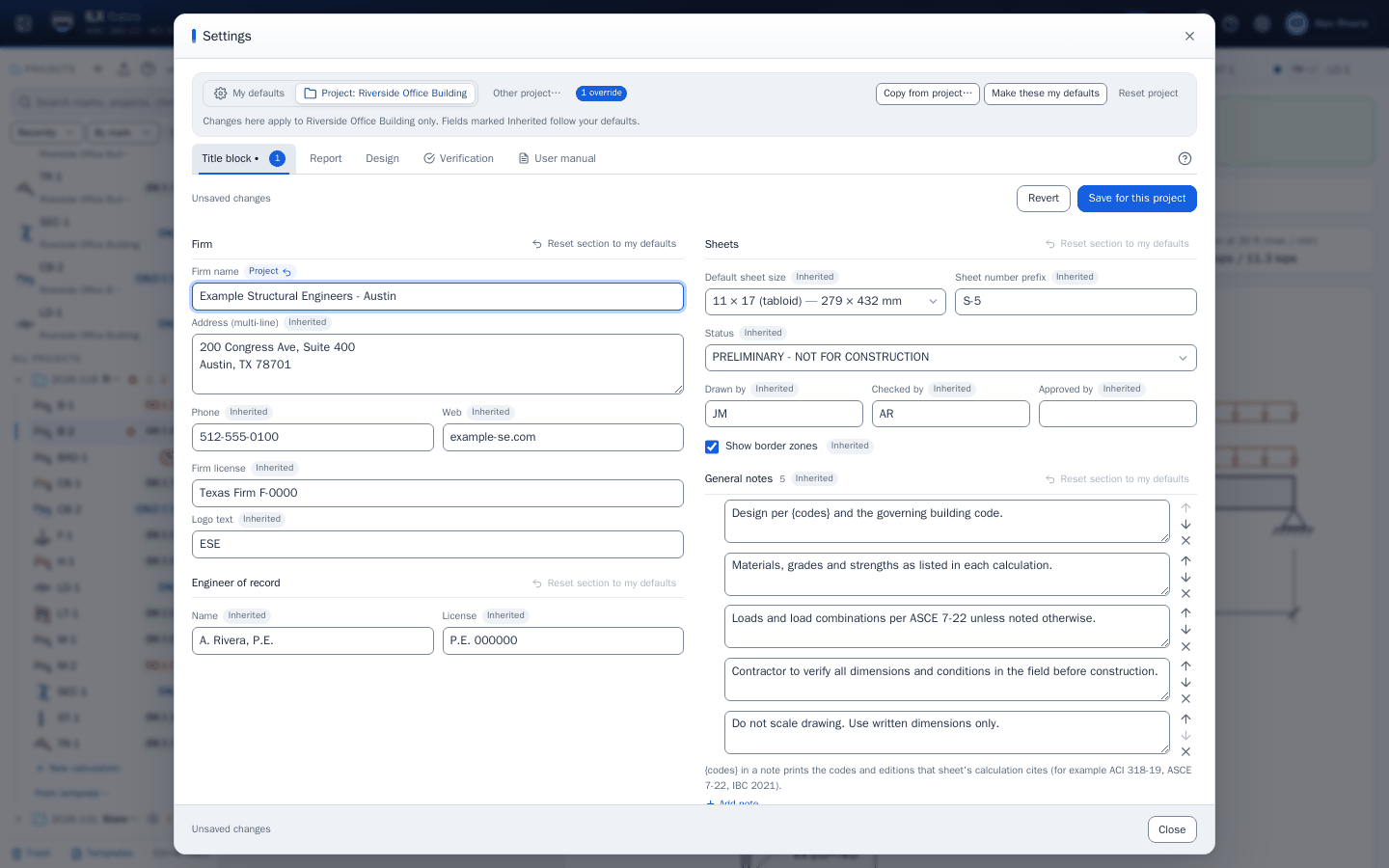
Copy from project takes another project's overrides. Make these my defaults promotes them. Reset project removes them all.
Save as project defaults in the editor is a different thing: it keeps the materials, methods and limits of this calculation as the starting values for new calculations of the same type in this project.
What the report prints #
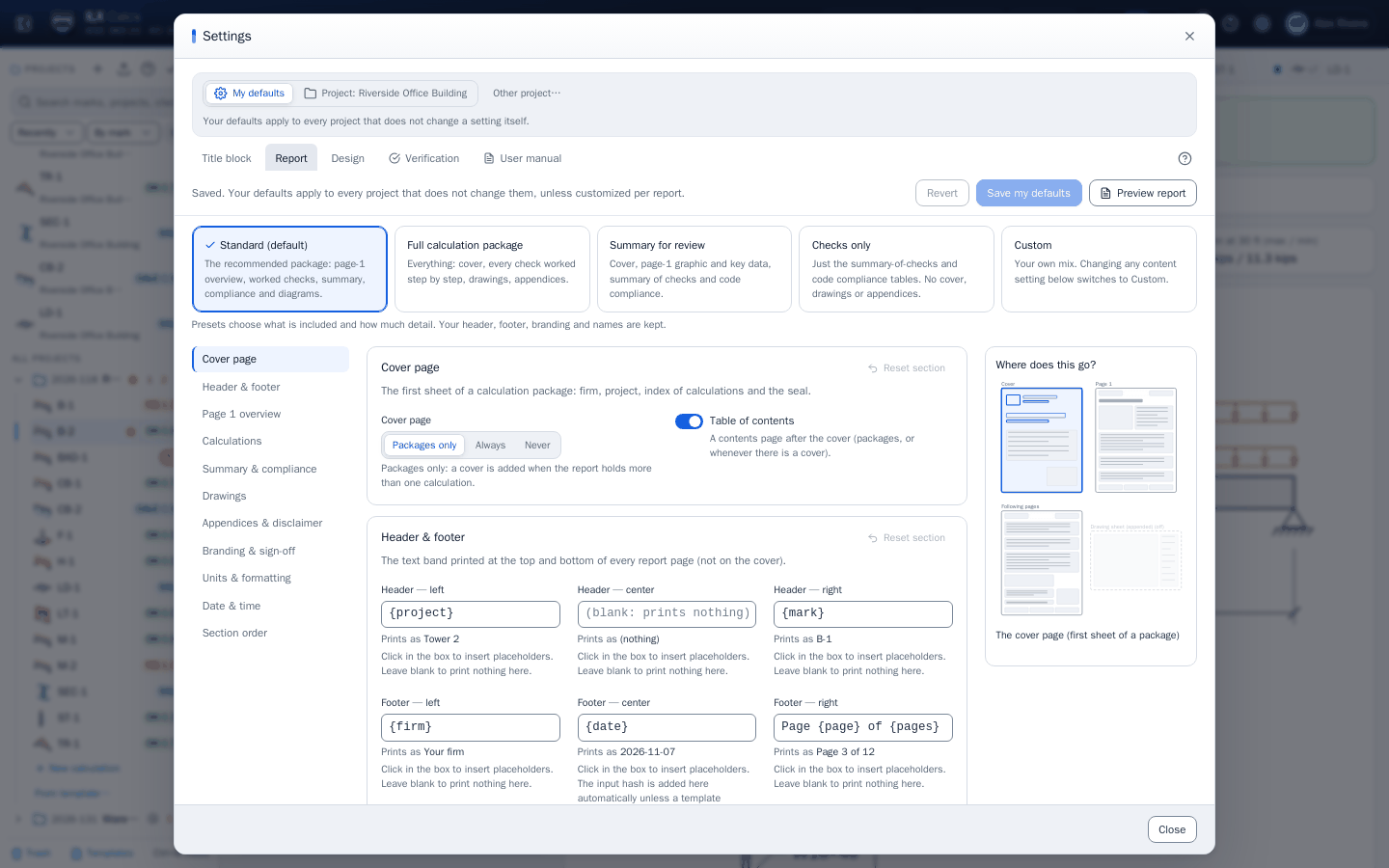
The Report tab sets the sections and their order, the level of detail, the units, the headers and footers, the signature and the disclaimer. The diagram at the right shows what prints where. Preview report shows the result before you save.
Output of one calculation #

- Calc report (PDF) prints with the saved settings. The arrow beside it offers Summary report, Full report and Customize this report, which changes this one report only.
- Drawing sheet makes the sheet PDF, with the sizes in its arrow. Drawing (DXF) gives the same sheet for your CAD.
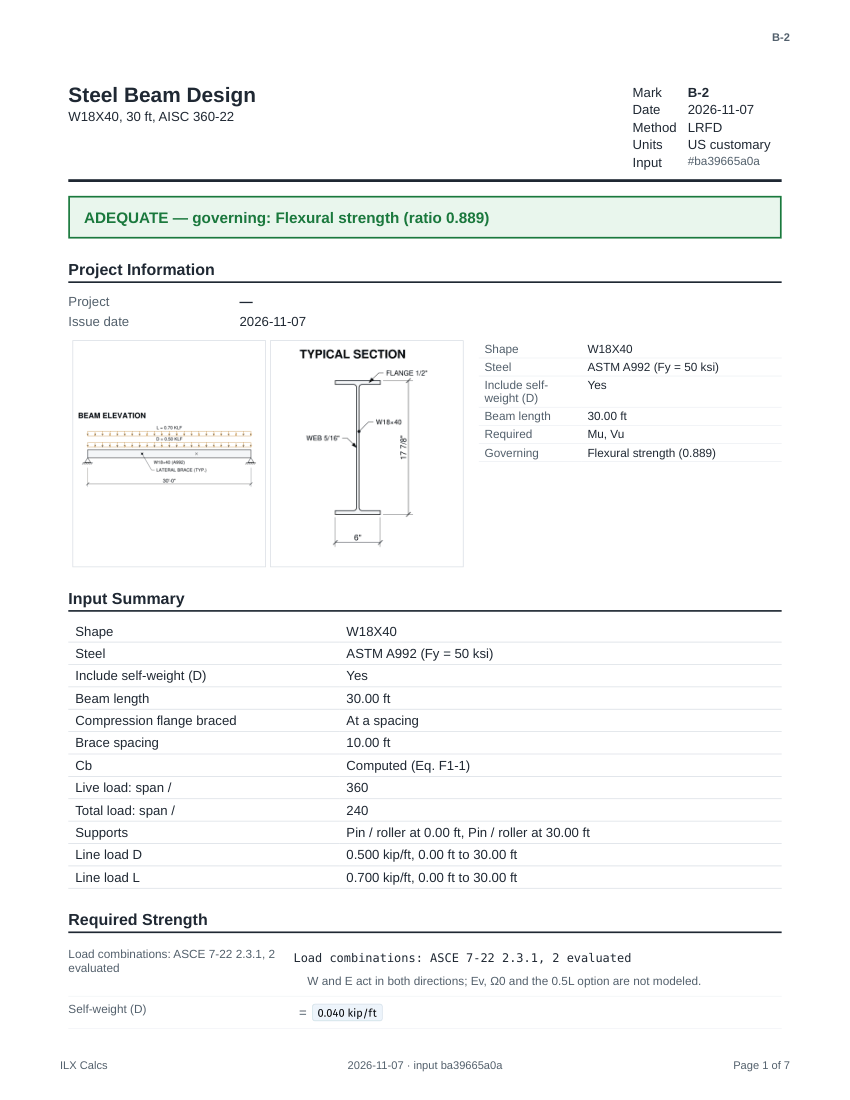
A report starts with the status, the inputs and the required strength, then every check with its equations:
The sheet carries the elevation, section, diagrams, general notes, design summary and your title block:
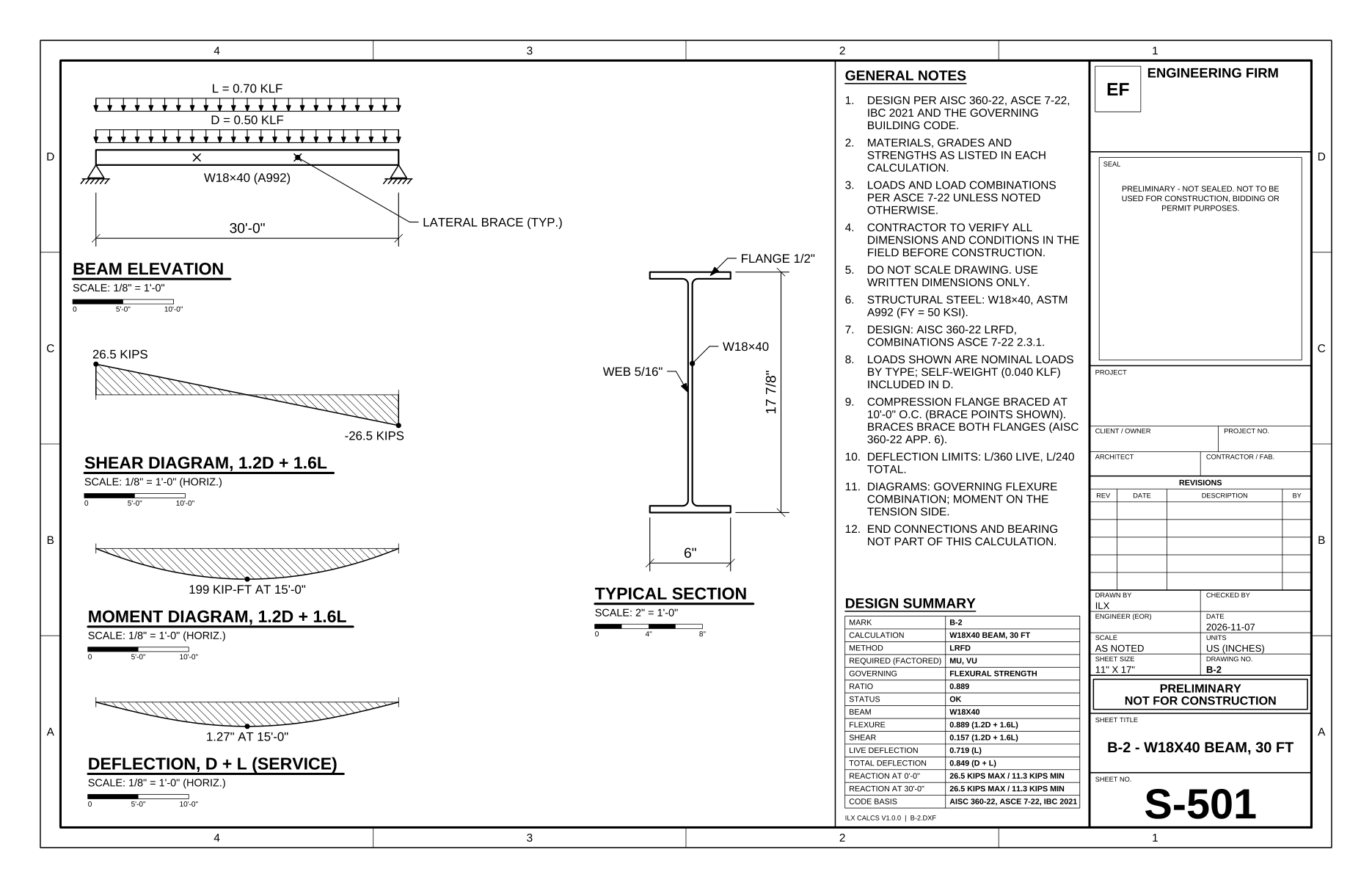
The sheet's status line comes from your title block, Preliminary, not for construction by default. Sealing and issuing are yours.
Four types make no sheet, because they have no geometry to draw: load chasedown, load combinations, dead load build-up and the unit converter.
Many marks at once #
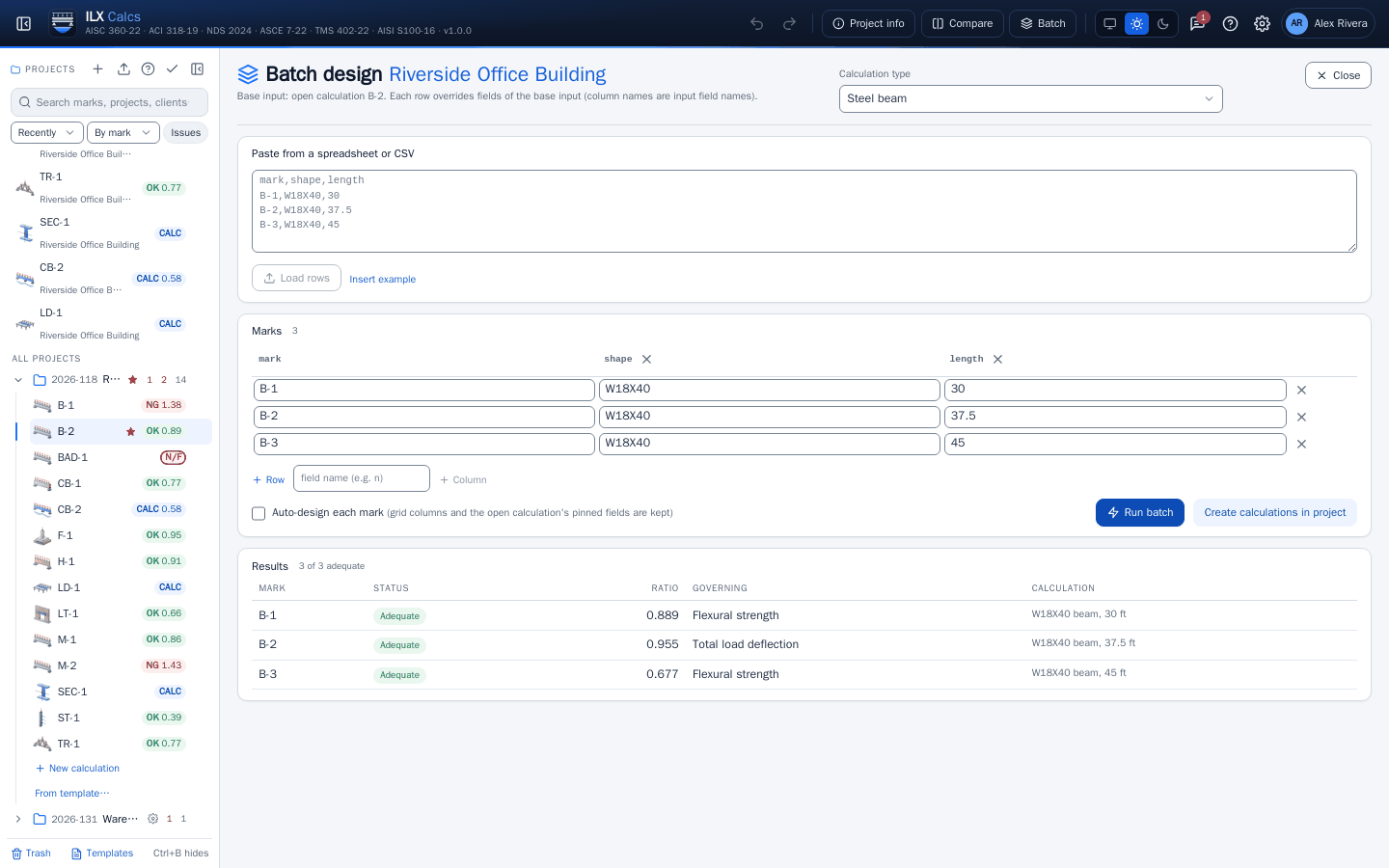
Batch in the header designs many marks of one type from a table: paste rows from a spreadsheet, optionally auto-design each mark, review, and create the calculations in the project.